

iPhone Habit Tracker Widgets: What Actually Helps, and How to Set Them Up
Why a home screen widget does more for a habit than any reminder, the four widget patterns that work (today's list, one focus, a score, a to-do), how to add and arrange them on iOS, and what GoalGo's four free widgets show.
 Katya Pavliv7 min read
A habit tracker widget helps for one reason: it puts the habit where your eyes already go, about a hundred times a day, without a notification you can swipe away. The widgets that work show one of four things: today's list with a way to see what's left, a single goal you care about most, one score for how you're doing overall, or the to-dos that are neither. Everything else is decoration.
Why a widget beats a reminder
A reminder arrives at 7 pm whether or not 7 pm is a good moment, and it is dismissed in a reflex. A widget is there at every unlock, and unlocks happen at the moments you are choosing what to do next, which is exactly when a cue is useful. Habit research calls this context-dependent cueing: behaviour follows the environment more than the intention, so change what the environment shows. The home screen is the most-viewed environment you own.
The second advantage is honesty. A widget shows the state, not a prompt: three habits left, 64% of the savings goal, a score of 72. You can't argue with it or postpone it. You can only look, and looking is most of the battle.
The four widget patterns that work
| Pattern | What it shows | Best size | When it helps most |
|---|---|---|---|
| Today's list | The habits scheduled today, ticked or not, with streaks | Medium or large | Morning and evening, deciding what's next |
| One focus | A single goal with progress and deadline | Small | Long goals where the daily habit feels disconnected from the outcome |
| One score | A summary number for the whole system | Small | After a rough week, to see that it dipped rather than reset |
| To-dos | Today's and tomorrow's one-off tasks | Medium | Keeping errands out of the habit list |
What doesn't work: a year heatmap in a small widget (unreadable), motivational quotes (ignored after day two), and anything that needs a tap to reveal information. A widget is a glance. If it needs interaction, it is an app.
GoalGo's four, and what each is for
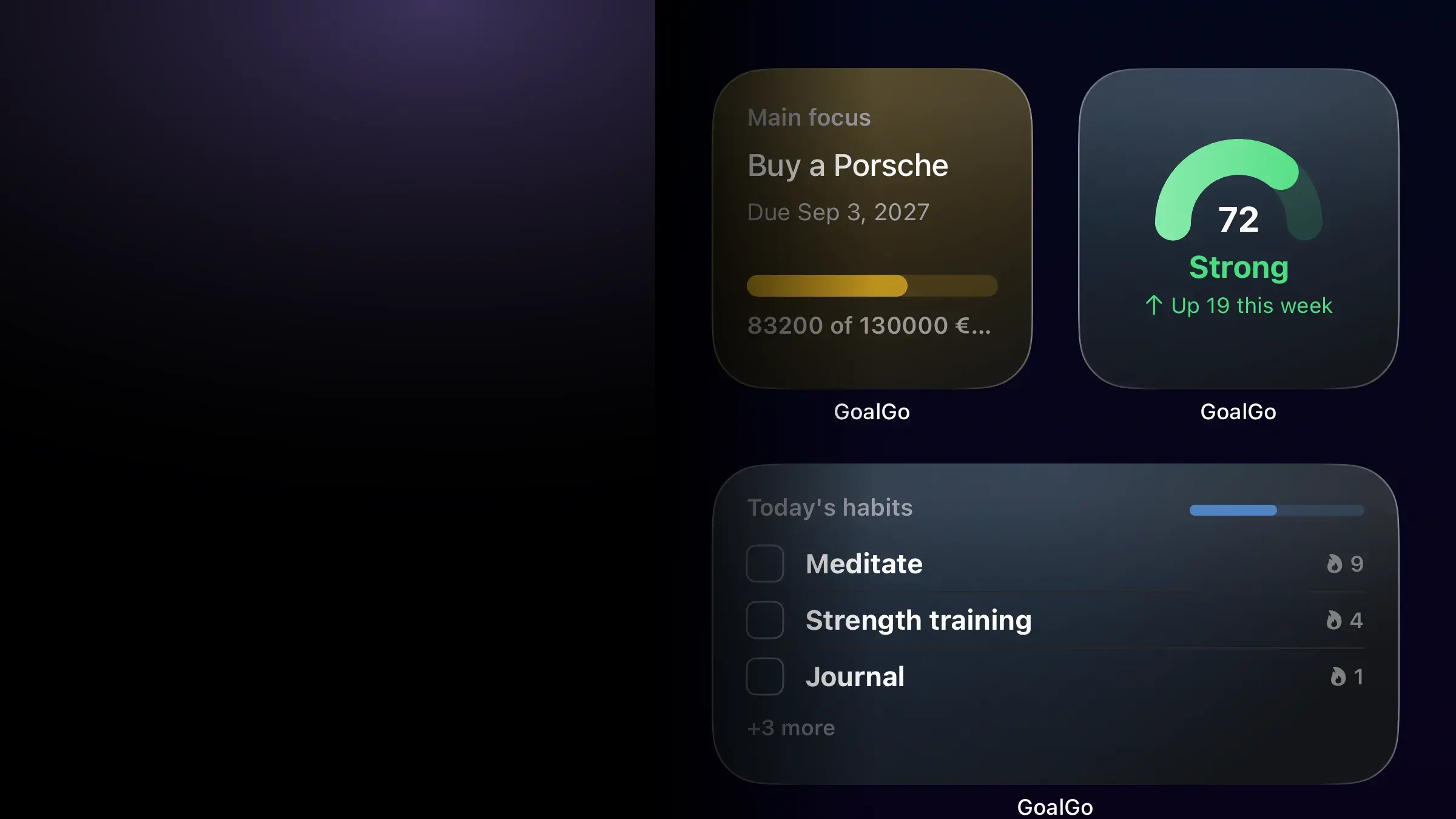
GoalGo ships one widget per pattern, and all four are free on every plan. Today's habits (medium, large) lists what's left today with streaks and a progress bar for the day; tap a row to open that habit. Main focus (small, medium) shows your pinned goal with its deadline and progress bar. Momentum (small, medium) is the 0–100 score, its level and whether you're up or down this week. To do (medium, large) shows today and tomorrow with starred items first. Full details on the widgets page.
How to add and arrange widgets on iPhone
- Touch and hold an empty area of the home screen until the apps start to jiggle.
- Tap the plus button in the top-left corner (Edit → Add Widget on newer versions of iOS).
- Search for the app, swipe through its widgets and sizes, and tap Add Widget.
- Drag it where you want it. Drop a same-size widget on top of another to make a Smart Stack you can swipe through.
- Tap Done. To change a widget's settings later, touch and hold it and choose Edit Widget.
A layout that works
Put the Today's habits widget on your first home screen, ideally the top half, so it is the first thing you see at every unlock. Put Main focus and Momentum side by side as two small widgets beneath it. Keep the To do widget on a second screen or in a stack: errands should be visible but should not compete with the habits for the prime spot.
Then remove the apps that used to be there. The point of the widget is to change what you see at the moment of choice; a row of social apps next to it undoes that.
Common mistakes
- A widget you never see. Third home screen, bottom row, behind a folder. Move it to the top of the first screen.
- Too much information. Eight habits in a small widget is a blur. Use the large size, or show fewer habits.
- Only the streak. A widget that shows "0" after one missed day is a reason to hide it. Show the score or the month.
- Expecting instant updates. iOS rations widget refreshes. Open the app if it looks stale.
Sources and dates
- Apple Support: Add and edit widgets on iPhone · accessed September 2026
- Apple Developer: WidgetKit and widget refresh budgets · accessed September 2026
- Wood & Neal, A new look at habits and the habit–goal interface (2007), on context cues · accessed September 2026
Last updated: .
Frequently asked questions
How do I add a habit tracker widget to my iPhone home screen?
- Touch and hold an empty area of the home screen until the apps jiggle, tap the plus button in the top corner, search for the app, swipe to choose a widget and size, then tap Add Widget. You can drag it into position and stack widgets of the same size on top of each other.
Are GoalGo's widgets free?
- Yes. All four (Momentum, Main focus, Today's habits, To do) in every size are included on the free plan.
Why does my widget not update immediately?
- iOS decides when widgets redraw and rations background updates to save battery. Apps hand iOS a fresh snapshot whenever data changes and request a redraw, but there can be a short delay. Opening the app always refreshes it.
Does GoalGo have lock screen or Apple Watch widgets?
- Not today. GoalGo ships home screen widgets only: no lock screen, StandBy or Apple Watch versions yet.